Can Multiple Users Access The Same Doorbell Camera
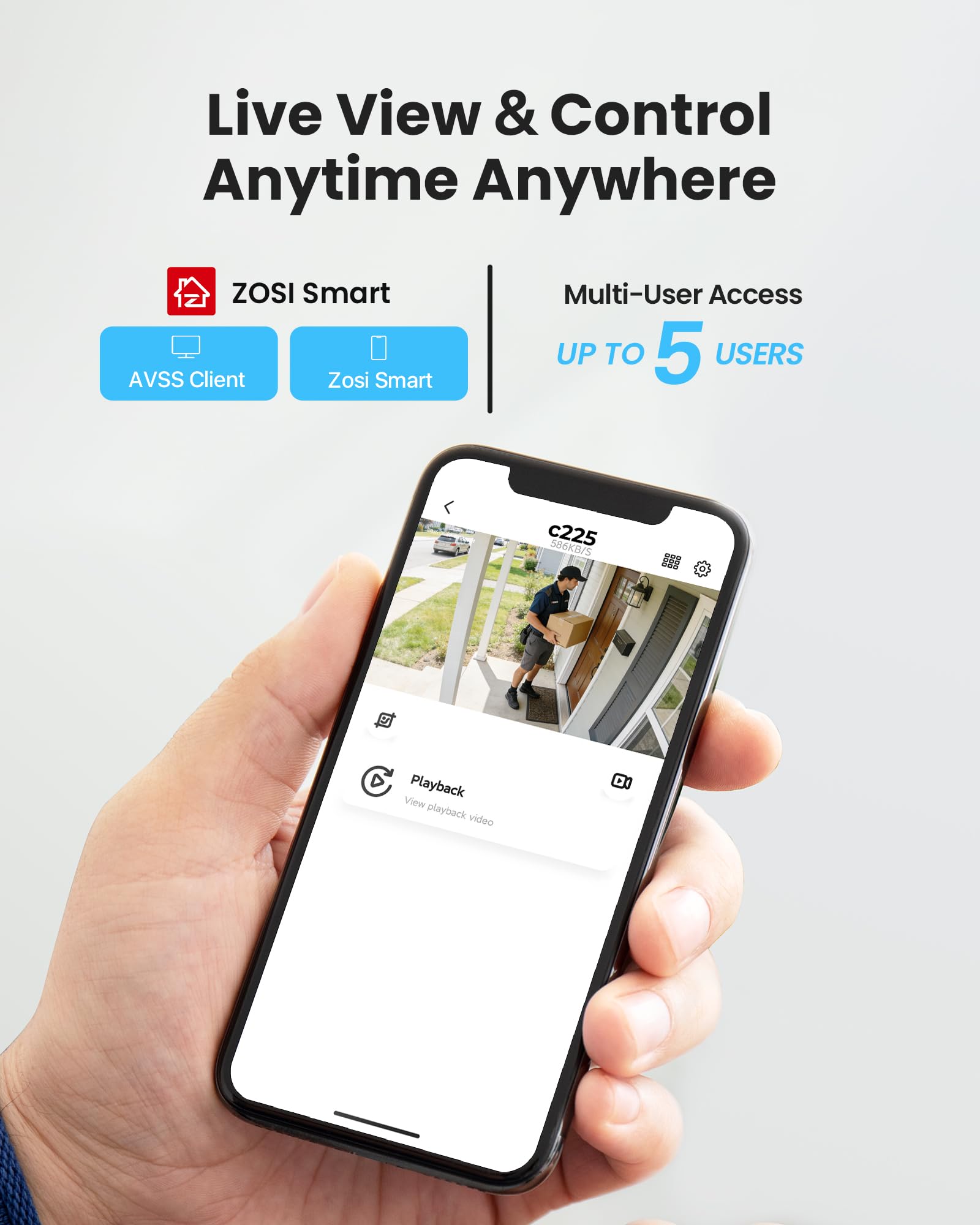
A doorbell camera is more than a simple security device. Today, it’s a smart home gadget that connects people, provides peace of mind, and helps families or teams work together. But what if several people want to use the same camera—can they all see who’s at the door? The answer is not always simple. The ability for multiple users to access a single doorbell camera depends on the brand, app, subscription, and privacy settings.
This article explores how multi-user access works for doorbell cameras. You’ll learn which brands support it, how sharing works in real life, what problems you might face, and how to keep your home secure while letting others join in. Whether you’re a parent, a roommate, a landlord, or part of a business, understanding these options can help you get the most from your smart doorbell.
Why Multi-user Access Matters
Imagine a home where everyone needs to know who’s at the door—kids, parents, or even a nanny. Or think about a small business with several employees. When multiple users can access the same doorbell camera, it increases safety and convenience. No one misses a delivery, a visitor, or an important alert.

Exclusive Deals
Limited-time Exclusive Deals. Check current discount on Amazon.
Check Price on Amazon As an Amazon Associate I earn from qualifying purchases.But there’s more. Multi-user access lets you:
- Share responsibility for answering the door or watching for packages.
- Respond faster to emergencies or unexpected guests.
- Customize notifications so only the right people get alerts.
- Build trust between family members or coworkers.
Many people overlook these benefits. They think only the person who set up the camera can use it. In fact, most major brands now support sharing, though each does it differently.
How Doorbell Camera Sharing Works
User Roles And Permissions
Not all users are created equal. When you add someone to your doorbell camera, you can usually choose their level of access. Here are common roles:
- Owner: The person who sets up the camera. Has full control—settings, adding/removing users, viewing all activity.
- Shared User: Can view live video, get notifications, sometimes talk to visitors, but can’t change key settings.
- Guest: Limited access, maybe only live video or event history. Good for visitors or short-term users.
Some brands let you fine-tune these roles. For example, you might let a family member view video but not delete it.
Exclusive Deals
Limited-time Exclusive Deals. Check current discount on Amazon.
Check Price on Amazon As an Amazon Associate I earn from qualifying purchases.Popular Brands And Their Approaches
Every brand handles sharing differently. Here’s a look at how leading companies do it.
| Brand | Multi-User Support | How to Share | Limits |
|---|---|---|---|
| Ring | Yes | Invite by email to “Shared User” | Up to 10 users |
| Google Nest | Yes | Add to “Home” in Google Home app | No fixed limit |
| Arlo | Yes | Invite by email; choose admin or friend | Up to 5 users (free plan) |
| Eufy | Yes | Add family or guest in app | Up to 20 users |
| Wyze | Yes | Share via app; view-only access | Unlimited viewers |
These brands use two main ways to share:
- Direct invitation: Send an email or app invite. The user creates an account, accepts, and gets access.
- Home or family group: Add people to a shared household. Everyone in the group can see the camera.
Real-world Example
Sarah and Tom live together. Sarah installs a Ring doorbell camera and adds Tom as a Shared User using his email. Tom now gets alerts, can see visitors, and even talk through the camera—but he cannot delete video or change Sarah’s settings. If Sarah travels, Tom can still monitor the door.
Exclusive Deals
Limited-time Exclusive Deals. Check current discount on Amazon.
Check Price on Amazon As an Amazon Associate I earn from qualifying purchases.If they had a Google Nest camera, Sarah would add Tom to the “home” in the Google Home app. Both would have nearly equal access, including history and device controls.
Setting Up Multi-user Access: Step By Step
Adding another user is not hard, but each brand has its own process. Here’s how it usually works:
- Open the app for your doorbell camera.
- Go to device settings—look for “Users,” “Family,” or “Sharing.”
- Enter the email address of the person you want to invite.
- Choose their permissions (full access, view-only, guest, etc. ).
- Send the invite. The other person will receive an email or notification.
- They accept the invite and set up their own account.
- Done! They can now access the camera from their phone or tablet.
Some brands (like Wyze) only allow view-only sharing, while others (like Ring and Arlo) let you give more control.
Tips For Smooth Setup
- Make sure invited users download the correct app.
- Check that their email address is correct—typos cause most invite problems.
- Tell new users to check spam/junk folders for the invite.
- Both the owner and new user should update their app to the latest version.
If you run into trouble, most brands have support pages or forums with step-by-step help. For example, you can find guides on the Ring Help Center.
What Features Can Shared Users Access?
Multi-user support is not all-or-nothing. Each user may get different features depending on their role and the brand.
Here are typical features for shared users:
- Live video: See the doorbell camera feed in real time.
- Notifications: Get alerts for motion or when the doorbell rings.
- Two-way talk: Speak to visitors through the app.
- Event history: Watch saved video clips (if allowed by the owner).
- Control settings: Sometimes adjust notifications or device preferences.
But there are limits. Usually, only the owner can:
- Change Wi-Fi settings
- Delete videos
- Add or remove other users
- Update billing or subscriptions
| Feature | Owner | Shared User | Guest |
|---|---|---|---|
| View live video | Yes | Yes | Maybe |
| Talk to visitors | Yes | Yes | No |
| Change settings | Yes | Limited | No |
| Add/remove users | Yes | No | No |
| Delete history | Yes | No | No |
This means you can give housemates or staff enough access to help, but not enough to change security settings.
Subscription Plans And Multi-user Access
Many people assume multi-user access is free, but that’s not always true. Some brands require a subscription plan for full sharing features.
Free Vs Paid Plans
- Ring: Sharing is free, but saving videos (for all users) needs a Ring Protect plan.
- Google Nest: Sharing is free, but event history and advanced features need a Nest Aware subscription.
- Arlo: Free plan allows up to 5 users. Paid plans allow more and add extra features.
- Eufy: Sharing is free; no monthly fee for basic features.
- Wyze: Sharing is free, but cloud recording needs Cam Plus.
Check carefully. Sometimes, owners think they can share all features, but shared users see only live video unless a subscription is active.
How Subscriptions Affect Shared Users
If you have a subscription, shared users usually get the same video storage, smart alerts, and history access as the owner. But if the subscription ends, everyone loses those features—even if they’re on different accounts.
A little-known fact: some brands limit the number of users who can get notifications or access advanced features, even on paid plans. Always read the details before buying.
Security And Privacy: What You Need To Know
Letting others access your doorbell camera is powerful—but it comes with risks. Privacy and security are important, especially if you have sensitive areas or personal deliveries.
Security Best Practices
- Use strong, unique passwords for all accounts.
- Enable two-factor authentication (2FA) if available. This adds a code on top of your password.
- Review user access regularly—remove old roommates, employees, or guests you no longer trust.
- Check the activity log (if your app has one) to see who’s viewing or talking through the camera.
Privacy Tips
- Only give access to people you trust.
- Limit features for guests or short-term users.
- Discuss with family or roommates before adding users.
- Remember: Anyone with access can see your visitors and deliveries.
One insight most owners miss: even if you remove a user, they might still get notifications or cached video until they log out and back in. Ask them to sign out if you end their access.

Common Problems And How To Solve Them
While multi-user support is useful, it doesn’t always go smoothly. Here are some frequent issues and practical solutions:
1. Invitation Not Received
The most common problem is that the invited user never gets the email or app invite. This is usually because:
- The email is typed wrong.
- The invite goes to spam/junk.
- The app is not installed.
Fix: Double-check the email, ask them to check all folders, and confirm they have the latest app version.
2. Shared User Can’t See Video
Sometimes, shared users can’t view live video or history.
- The owner’s subscription might be expired.
- The app might need updating.
- The owner set limited permissions.
Fix: Check the owner’s subscription and permissions. Both users should update the app.
3. Too Many Notifications
If everyone gets alerts for every visitor, it can become annoying.
Fix: Most apps let each user customize their own notifications. Teach users how to adjust these settings in their app.
4. Lost Access After Device Reset
If the camera is reset or the owner changes Wi-Fi, shared users might lose access.
Fix: The owner should re-invite users after major changes.
5. Privacy Concerns
Sometimes, roommates or coworkers feel uncomfortable with camera access.
Fix: Discuss privacy up front and set clear rules. Limit who gets access, and use roles to restrict features.
Comparing Multi-user Features Across Brands
How do the top brands stack up for sharing? Here’s a quick comparison for real-world use:
| Brand | Max Users | Custom Permissions | History Access | Subscription Needed? |
|---|---|---|---|---|
| Ring | 10 | Yes | Yes (with plan) | For video storage |
| Google Nest | Unlimited | Limited | Yes (with plan) | For event history |
| Arlo | 5 (free) | Yes | Yes (with plan) | For cloud storage |
| Eufy | 20 | Yes | Yes (local/plan) | Optional |
| Wyze | Unlimited | No | Yes (with plan) | For cloud video |
This shows that you can usually share with at least 5-10 people, but only some brands let you set custom permissions or avoid a subscription.

Two Non-obvious Insights Most Beginners Miss
- Shared users can sometimes trigger automations or routines. For example, if your camera is connected to smart lights or a smart lock, a shared user might be able to unlock your door or turn on lights—even if you didn’t realize you gave them that power. Always check what automations are linked to your camera.
- Access is device-based, not just account-based. If a shared user logs in on multiple phones or tablets, they can view your camera from anywhere those devices are logged in. If you remove them, they need to log out everywhere to lose access fully.
Use Cases: Who Benefits Most?
Multi-user doorbell camera access helps many groups:
- Families: Parents, kids, and caregivers can all stay informed.
- Roommates: Everyone knows when guests or deliveries arrive.
- Small businesses: Staff can check who’s at the door or manage deliveries.
- Landlords: Share access with tenants for move-in/move-out, then remove when needed.
- Remote workers: Keep an eye on home deliveries while away.
For each group, pick a brand and plan that matches your sharing needs.
What To Consider Before Sharing
Before you add someone to your camera, ask yourself:
- Do you trust this person with video access?
- What features do they really need?
- Is your subscription plan enough for everyone?
- How will you handle privacy if things change (like a roommate moving out)?
Think long-term. It’s easy to add users, but removing them or changing roles can be tricky if you’re not prepared.
Future Trends In Multi-user Doorbell Cameras
The world of smart home security is changing fast. Here’s what’s likely next for multi-user access:
- Granular permissions: Brands will let you set access by time, feature, or location.
- Temporary sharing: Give a visitor or cleaner access for a few hours, then auto-remove.
- Better logs: See exactly who viewed video, when, and from which device.
- Voice control: Add or remove users using voice assistants like Alexa or Google Assistant.
- Stronger privacy tools: Brands will offer more ways to protect your data and limit sharing.
These trends will make it easier and safer for multiple people to use the same camera.
Frequently Asked Questions
Can I Share My Doorbell Camera With People Who Don’t Live With Me?
Yes, most brands let you share access with anyone, as long as they have a compatible device and app. For example, you can let a neighbor watch your door while you’re on vacation. Just remember to remove their access when you return.
Will Shared Users See Everything I See?
Usually, shared users can see live video and get alerts, but they might not see all video history or settings. It depends on the brand and your chosen permissions. Always check the sharing options before inviting someone.
Does Sharing My Doorbell Camera Put My Security At Risk?
Sharing does increase risk a little, especially if you add people you don’t fully trust. Use strong passwords, enable two-factor authentication, and review shared users often. Limit features for guests or temporary users.
Can I Limit What A Shared User Can Do With My Camera?
Yes, most brands let you pick roles or set permissions. You can allow live viewing but block deleting video or changing settings. Some brands offer more control than others, so check before you buy.
What Happens If I Change My Wi-fi Or Reset The Camera?
If you reset the device or change Wi-Fi, shared users may lose access and need a new invite. Always update your app and re-invite users if you make big changes to your setup.
Multi-user access makes doorbell cameras much more useful for families, roommates, and teams. With a little planning, you can share security while keeping control and privacy. Before you start, consider your needs, choose the right brand and plan, and follow security best practices.
That way, everyone can stay connected and protected—together.