Resetting a smart door lock may sound simple, but the process can be tricky, especially for beginners. Many people worry about losing access, making mistakes, or forgetting crucial steps. Whether you’re troubleshooting a malfunction, updating security, or preparing your lock for a new user, knowing how to reset your smart lock is essential.
Exclusive Deals
Limited-time Exclusive Deals. Check current discount on Amazon.
Check Price on Amazon As an Amazon Associate I earn from qualifying purchases.This guide will help you understand the full process, avoid common mistakes, and ensure your lock works perfectly after a reset.
Smart door locks are becoming more popular every year. According to Statista, over 12 million households in the US had a smart lock installed in 2023. With their convenience and security features, these devices are changing how we protect our homes and businesses. But technology can fail or settings may need to change, so learning how to reset your smart door lock is a skill every owner should have.
Understanding Smart Door Locks
Smart door locks are electronic locks that let you control access using smartphones, keypads, fingerprints, or even voice commands. Unlike traditional locks, these devices offer advanced features like remote access, temporary codes, and activity logs. They work through Bluetooth, Wi-Fi, or Z-Wave connections.
Common Types Of Smart Door Locks
- Keypad locks – Unlock with a code.
- Bluetooth locks – Connect to your phone for unlocking.
- Wi-Fi locks – Remote access from anywhere.
- Biometric locks – Use fingerprints or facial recognition.
- Hybrid locks – Combine several features.
Each type has its own reset method, so knowing your lock’s model is important. You’ll usually find the model and type on the packaging or inside the battery compartment.
Exclusive Deals
Limited-time Exclusive Deals. Check current discount on Amazon.
Check Price on Amazon As an Amazon Associate I earn from qualifying purchases.Why Reset A Smart Door Lock?
There are several reasons you might need to reset your smart lock:
- Forgotten codes or passwords: If you lose your code, you need a reset.
- Malfunction or error: When the lock isn’t working properly.
- Security concerns: After someone moves out or loses a key.
- Preparing for resale: Before selling or gifting the lock.
- Connecting to a new app or device: Changing phones or smart home systems.
Resetting brings the lock back to factory settings, erasing all user codes, history, and connections.
Steps To Reset A Smart Door Lock
Resetting a smart lock isn’t the same for every brand. Here’s a general process that fits most locks, followed by examples from popular brands.
Step 1: Identify Your Lock Model
Find your lock’s brand and model number. This information is often on the front, back, or inside the battery compartment. If you can’t find it, check your purchase receipt or the manufacturer’s website.
Step 2: Read The User Manual
Every lock has its own reset instructions. Look for your manual, either printed or online. Most brands provide downloadable manuals and FAQs.
Exclusive Deals
Limited-time Exclusive Deals. Check current discount on Amazon.
Check Price on Amazon As an Amazon Associate I earn from qualifying purchases.Step 3: Check Battery Power
A reset often needs enough battery power. If your lock is low on charge, replace batteries before starting. Low battery can interrupt the reset and cause errors.
Step 4: Locate The Reset Button
Many smart locks have a small reset button. It can be inside the battery compartment, behind a cover, or on the side. Sometimes, you’ll need a pin or paperclip to press it.
Step 5: Perform The Reset
The typical reset steps:
- Remove the battery cover.
- Press and hold the reset button for 5–10 seconds.
- Wait for a beep or flashing light.
- Release the button.
- Wait for confirmation (usually another beep or light change).
Your lock should now be back to factory settings. All codes and connections will be erased.
Step 6: Reconnect And Reprogram
After resetting, you’ll need to:
- Add new user codes or fingerprints.
- Connect to your app or smart home hub.
- Update settings like auto-lock or notifications.
Tip: Write down your new codes and settings in a safe place.
Reset Examples For Popular Brands
Not all locks reset the same way. Here are instructions for three common brands.
Kwikset Smart Locks
Kwikset is a leading brand with millions of users. Their locks often use a SmartKey system.
Steps:
- Remove the lock’s battery pack.
- Press and hold the program button (inside battery compartment).
- While holding, reinsert the battery pack.
- Keep holding the button for 30 seconds (until the lock beeps).
- Release the button. The lock beeps again to confirm.
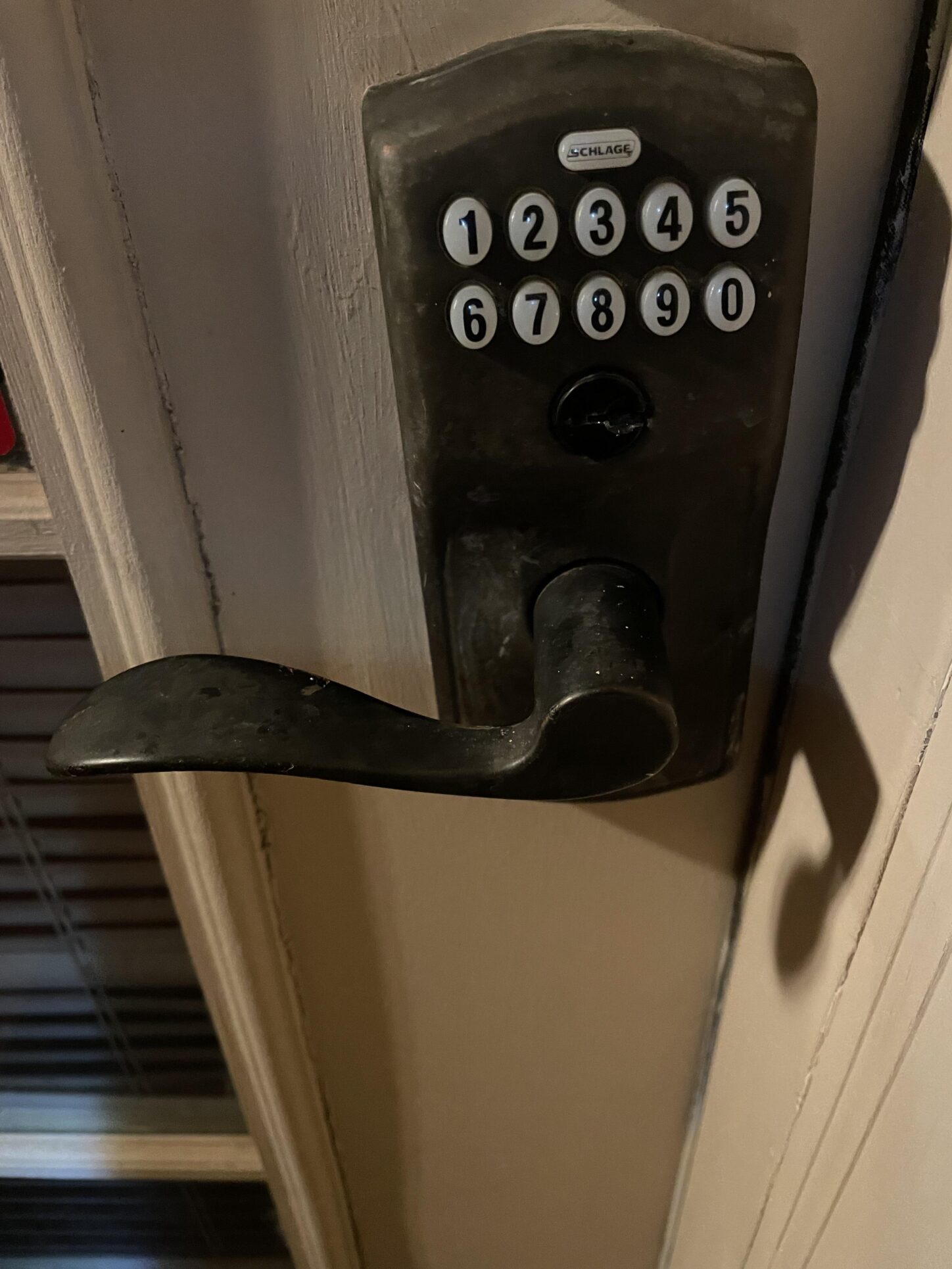
Schlage Smart Locks
Schlage locks are famous for durability and security.
Steps:
- Disconnect batteries.
- Press and hold the outside Schlage button.
- While holding, reconnect the batteries.
- Release the button after 10 seconds (when the lock blinks and beeps).
Yale Smart Locks
Yale locks use touchscreen keypads and are popular worldwide.
Steps:
- Remove the battery cover.
- Press and hold the reset button with a pin.
- Hold for 10 seconds until the lock chimes.
- Release the button and replace the cover.
Comparison Of Reset Procedures
Here’s a quick comparison of the steps for Kwikset, Schlage, and Yale:
| Brand | Reset Button Location | Hold Time | Confirmation |
|---|---|---|---|
| Kwikset | Battery Compartment | 30 seconds | Beep |
| Schlage | Outside Button | 10 seconds | Blink & Beep |
| Yale | Inside (with pin) | 10 seconds | Chime |
Troubleshooting: What To Do If Reset Fails
Sometimes, a reset doesn’t work as expected. Here’s how to troubleshoot:
Battery Issues
Low batteries are a top cause. Always use fresh batteries before resetting.
Button Not Working
If the reset button doesn’t respond, try:
- Using a different pin or paperclip
- Pressing slightly harder
- Checking for dirt or corrosion
App Or Connectivity Problems
After a reset, your lock may not connect to your app or hub. Try:
- Removing and reinstalling the app
- Restarting your phone or smart hub
- Checking Wi-Fi or Bluetooth settings
Common Mistakes
Many beginners forget these steps:
- Not removing batteries before pressing the reset button
- Not holding the button long enough
- Forgetting to reprogram after the reset
Tip: If you’re stuck, check the brand’s support site or call their customer service.

Smart Lock Security After A Reset
Resetting wipes out all codes and connections. This improves security if you’re worried about old users or lost codes. But it also means you must set up your lock again.
How To Keep Your Lock Secure
- Use strong codes: Avoid simple combinations like 1234 or 0000.
- Change codes regularly: Update every few months.
- Enable notifications: Many locks send alerts for activity.
- Limit user access: Only give codes to trusted people.
- Update firmware: Manufacturers release updates for security.
Security Features Comparison
Let’s compare some security features across popular brands:
| Brand | Auto-Lock | Activity Logs | Temporary Codes |
|---|---|---|---|
| Kwikset | Yes | No | Yes |
| Schlage | Yes | Yes | Yes |
| Yale | Yes | Yes | Yes |
Reconnecting Your Smart Lock
After resetting, you must reconnect your lock to your smartphone or smart home system. Here’s a quick guide:
Connecting To An App
- Download the correct app for your lock (e.g., Kwikset, Schlage, Yale).
- Create or log in to your account.
- Follow the app’s instructions to add your lock.
- Enter new codes or fingerprints.
Connecting To Smart Home Systems
Smart locks often connect to Amazon Alexa, Google Home, or Apple HomeKit. After a reset, you’ll need to:
- Remove old connections from your smart hub
- Add the lock as a new device
- Set up routines or voice commands
Tip: Always check compatibility before buying or connecting a new lock.
Backup And Recovery Options
Many smart locks offer backup ways to get in if you forget your code or the app fails.
Physical Keys
Some locks include a physical key for emergencies. Make sure you keep it in a secure place.
Temporary Codes
If you’re expecting guests, most locks let you create temporary codes. These expire after a set time.
Customer Support
If you’re locked out or the reset fails, contact the manufacturer’s support team. They can guide you through advanced recovery steps.
Real-world Example: Resetting After A Move
Imagine you’ve just moved into a new home with a smart lock installed. You don’t know the old codes, so resetting is vital.
Steps:
- Find the lock’s brand and model.
- Search for the manual online.
- Replace old batteries.
- Locate and press the reset button.
- Wait for confirmation.
- Set up new codes for your family.
- Connect to your app for control and monitoring.
This process protects your home and ensures only you have access.
Smart Lock Reset: Data And Trends
Resetting smart locks is a common task. According to a 2022 survey, 35% of smart lock owners reset their locks at least once per year. The main reasons were forgotten codes, app issues, and security concerns.
Why Owners Reset Their Locks
| Reason | Percentage |
|---|---|
| Forgotten Codes | 25% |
| App Malfunction | 20% |
| Security Update | 30% |
| Moving Home | 15% |
| Other | 10% |
Advanced Reset Options
Some locks offer advanced reset features:
- Remote reset: Through the app, if you’re away from home.
- Partial reset: Only erase codes, not all settings.
- Schedule reset: Automatic resets at regular intervals.
Check your lock’s manual for these features. Not all models support advanced resets.
Non-obvious Insights For Beginners
Many beginners miss these points:
- Resetting doesn’t fix all problems: Sometimes, the issue is with your app, Wi-Fi, or smart hub—not the lock itself. Try troubleshooting connections first.
- Firmware updates matter: If your lock acts strange, check for firmware updates. These can fix bugs and improve performance.
Tip: Register your lock with the manufacturer. This makes support easier and gives you access to updates.
When Not To Reset
Resetting is powerful but isn’t always the answer. If your lock is just slow or unresponsive, try:
- Changing batteries
- Restarting your app or phone
- Cleaning the keypad or sensor
Only reset if you truly need to erase codes or fix major errors.
Smart Lock Brands And Support
Some brands offer better support and resources. For help, visit their official sites:
- Kwikset: Kwikset.com
- Schlage: Schlage.com
- Yale: Yalehome.com
For broader information, you can check Wikipedia for smart lock technology and trends.
Smart Lock Reset: Key Takeaways
- Find your lock’s model and read the manual before resetting.
- Check battery power to avoid interruptions.
- Follow brand-specific steps for best results.
- Reprogram and reconnect after a reset.
- Keep your codes and settings safe.
- Update security features regularly.
Resetting your smart door lock is simple when you follow the right steps. It’s an important skill for safety, convenience, and peace of mind.

Frequently Asked Questions
How Often Should I Reset My Smart Door Lock?
Reset your smart lock if you suspect a security issue, forget codes, or move into a new home. Regular resets aren’t needed unless you change users often.
Will Resetting Erase All Codes And Settings?
Yes, a full reset deletes all codes, fingerprints, and connections. You’ll need to set up your lock again from scratch.
What If I Can’t Find The Reset Button?
Check your manual or the manufacturer’s website. Some locks hide the button inside the battery compartment or behind a cover. If you still can’t find it, contact support.
Can I Reset My Lock Remotely?
Some advanced locks let you reset remotely through their app. This feature isn’t available on all models, so check your manual or app instructions.
Is Resetting Safe For My Lock?
Yes, resetting is safe if you follow the correct steps. Always use fresh batteries and read the manual. Avoid repeated resets in a short time to prevent errors.
Resetting your smart door lock is a valuable skill. Whether you need to fix a problem, boost security, or update your system, following these steps will help you stay in control. With smart lock technology growing fast, knowing how to reset your device keeps your home safe and your life convenient.