Smart locks are changing how we access our homes, offices, and even vacation rentals. These devices offer keyless entry, remote control, and security alerts—all through a smartphone or a keypad. But as more families, roommates, and business partners consider installing smart locks, a common question comes up: Can multiple users access the same smart lock? The answer is yes, but there are important details, features, and limitations to understand.
Exclusive Deals
Limited-time Exclusive Deals. Check current discount on Amazon.
Check Price on Amazon As an Amazon Associate I earn from qualifying purchases.If you’re considering a smart lock for a shared space or want to give access to family, friends, or workers, this article will cover everything you need to know. We’ll look at how multiple users can access one smart lock, what types of permissions exist, the benefits and risks, and how leading brands compare.
You’ll find practical advice, security tips, and answers to the most common questions—all in simple, clear language.
How Multiple Users Access The Same Smart Lock
Most smart locks are designed with multi-user access in mind. This means you can let several people unlock the same door, each with their own code or smartphone app. The process depends on the lock’s features, but the main methods are:
- Mobile App Access: Many smart locks connect to a mobile app. The owner can invite others by email or text, giving them access through their own smartphones.
- User Codes: Some locks have keypads. Each person gets a unique PIN code to enter.
- Physical Keys: Some smart locks still allow traditional keys as a backup option.
- RFID or Fobs: Certain models use key cards or small fobs that you can hand out.
Example: Sharing Access With Family
Imagine a family with two parents, a teenager, and a cleaning person. The parents have full access through their phones. The teenager gets their own code. The cleaner has a different code that only works on Fridays from 10 a.
Exclusive Deals
Limited-time Exclusive Deals. Check current discount on Amazon.
Check Price on Amazon As an Amazon Associate I earn from qualifying purchases.m. to 2 p. m. Each user’s access is tracked and can be removed or changed by the main account holder at any time.
Types Of Access Permissions
Not all users need the same level of control. Good smart locks let you customize who can do what. Understanding these permissions helps you manage your lock safely and efficiently.
Owner/admin Access
The owner or admin is the person who first sets up the lock. This user can:
- Add or remove other users
- Change lock settings
- View all access logs
- Set or change codes
Permanent Users
These are people who need ongoing access, like family members or roommates. They usually get:
- A permanent code or app invitation
- The ability to unlock and lock the door anytime
Temporary Users
You might want to let someone in just once or during a set time. For example:
Exclusive Deals
Limited-time Exclusive Deals. Check current discount on Amazon.
Check Price on Amazon As an Amazon Associate I earn from qualifying purchases.- A dog walker from 1 p.m. to 2 p.m.
- Airbnb guests for one weekend
Temporary codes or app permissions can expire automatically.
Scheduled Access
Some smart locks allow scheduled access, where codes only work on certain days or hours. This is useful for cleaners, maintenance staff, or short-term guests.
Access By Location
Some advanced locks can limit access to certain doors in a multi-unit building. For example, the front gate and the gym, but not all apartments.

Real-world Applications For Multi-user Smart Locks
Allowing multiple users isn’t just convenient—it solves real problems in homes, businesses, and rentals.
Families And Roommates
- Kids can come home from school without needing a key.
- Parents can check when children arrive.
- Roommates each have their own code, which can be removed if someone moves out.
Short-term Rentals (airbnb, Vrbo)
- Hosts send guests a unique code for each stay.
- Access can start and end automatically with each booking.
- Cleaning staff get their own codes.
Small Businesses
- Employees have individual access for opening and closing.
- Owners track who enters and when.
- Lost keys are no longer a security risk.
Property Management
- Manage hundreds of users across many locks from one app.
- Provide access to contractors or inspectors as needed.
Benefits Of Multi-user Access
Letting multiple people use one smart lock offers clear advantages.
- Convenience: No more hiding keys or copying them.
- Control: You decide who gets in and when.
- Security: Lost access can be turned off instantly.
- Activity Tracking: See who unlocked the door and at what time.
- Customization: Set up different rules for each user.
Common Concerns And Security Risks
While sharing access is helpful, it’s important to be aware of potential risks.
Unauthorized Entry
If a code or app invitation is shared with someone you don’t know, they can enter without your consent. Always choose strong codes and never share them widely.
Hacking And Digital Risks
Like any connected device, smart locks can be a target for hackers. Choose locks with encryption and keep your firmware updated.
User Management Mistakes
Forgetting to remove old users (such as ex-employees or former roommates) means they might still have access. Regularly review your user list.
Power And Connectivity Failures
Smart locks often need batteries or a Wi-Fi connection. If these fail, users might be locked out. Many locks have backup keys or emergency options.
How Leading Smart Lock Brands Handle Multiple Users
Different brands offer different levels of multi-user support. Here’s a comparison of how top brands manage user access:
| Brand | Max Users | Access Methods | Special Features |
|---|---|---|---|
| August | Unlimited (app) | App, keypad, voice, keys | Guest invites, activity log |
| Schlage Encode | 100 codes | Keypad, app, keys | Scheduled codes, Alexa/Google |
| Yale Assure | 250 codes | Keypad, app, keys | Temporary codes, voice control |
| Kwikset Halo | 250 codes | Keypad, app, keys | Lockout mode, activity history |
Non-obvious Insight: Cloud Vs Local Storage
Some locks store user data in the cloud, while others keep it locally on the device. Cloud storage means you can manage users from anywhere, but you depend on the company’s servers. Local storage may be more private but less flexible.
Non-obvious Insight: Integration With Smart Home Systems
If your lock integrates with Amazon Alexa, Google Assistant, or Apple HomeKit, you can use voice commands or connect it with other devices. Not all multi-user features work perfectly across these platforms, so check compatibility before buying.
Managing Users: Best Practices And Tips
Giving access to multiple users works best when you follow a few key practices.
Use Unique Codes For Each Person
Always assign a different code or app invite to each user. This way, you can track who entered and remove access for one person without affecting others.
Set Expiry Dates For Temporary Users
Whenever you give temporary access (to guests or workers), set a start and end date. Many smart locks allow this in their apps.
Regularly Review Access Logs
Check your lock’s history to see who unlocked the door and when. This helps spot unusual activity or security issues.
Update And Remove Users Promptly
When someone no longer needs access, remove them right away. Don’t leave old codes or app invitations active.
Keep Software Up To Date
Smart lock apps and firmware are updated to fix bugs and improve security. Make sure you install updates as soon as they’re available.
Comparing Multi-user Features: What To Look For
When shopping for a smart lock, not all multi-user features are equal. Here’s a direct side-by-side comparison of key features:
| Feature | Why It Matters | Questions to Ask |
|---|---|---|
| Number of Users | Supports families, teams, guests | How many codes or app invites are supported? |
| Access Types | Flexibility for different situations | Does it support codes, app, fobs, keys? |
| Scheduling | Limits access to set times | Can you set hours/days for each user? |
| Remote Management | Control even when away from home | Can you add/remove users remotely? |
| Activity Logging | Tracks who enters and when | Is there a clear access history? |

Multi-user Access In The Real World: Case Studies
Case Study 1: Airbnb Host
Jane runs an Airbnb in New York. She uses a smart lock that lets her send each guest a unique code valid only for their stay. She also gives her cleaner a code that works on Mondays and Thursdays. Jane never meets guests in person but always knows who enters and when.
If a guest cancels, she deletes their code instantly.
Case Study 2: Small Business Owner
Carlos owns a coffee shop with five employees. He gives each worker their own code for the front door. The lock’s app shows him when employees arrive for their shifts. If an employee leaves the company, Carlos deletes their code the same day.
Case Study 3: Busy Family
The Robinson family has three teenagers. Each child has their own code. The parents use the app to check when the kids get home from school. When their cousin visits for a week, they give her a temporary code that expires when she leaves.
Potential Problems And How To Solve Them
Even with advanced smart locks, some issues can occur when many users are involved.
Forgotten Codes Or Lost Phones
If someone forgets their code or loses their phone, the admin can reset their access through the app. Some locks allow you to reset everything if needed.
Too Many Users
Some locks have a limit (like 100 or 250 codes). If you reach this limit, you’ll need to delete old users or choose a higher-capacity model.
Privacy Concerns
Some users may not want their entry times tracked. Be clear with your users about what data is collected and why.
App Compatibility
Not every user may have a compatible smartphone or be comfortable with apps. In these cases, choose a lock with a keypad or physical key backup.
What Happens If The Internet Or Power Fails?
Smart locks use different ways to stay functional during outages.
- Battery Power: Most smart locks run on batteries, so a power outage at home won’t affect them immediately. Always check battery life and replace as needed.
- Offline Codes: Keypad codes usually work even if Wi-Fi is down.
- Physical Key: Some locks have a traditional key slot as backup.
- Bluetooth: Some models use Bluetooth, which doesn’t need internet but requires the user to be nearby.
If you depend on remote management, check that your lock supports offline access for local users.
Smart Lock Security: How Safe Is Multi-user Access?
Security is a top concern. Here are ways to keep your multi-user smart lock safe:
- Choose Strong Codes: Avoid simple codes like 1234 or birthdays.
- Don’t Reuse Codes: Give each user a unique code.
- Monitor Access Logs: Watch for unexpected activity.
- Update Firmware: Security updates fix new threats.
- Use Two-Factor Authentication: Some apps support this for extra protection.
According to a 2023 report by Statista, 43% of US smart lock owners say the ability to assign and revoke codes is a key reason for choosing a smart lock. This feature is especially important for multi-user homes and businesses.
The Future Of Multi-user Smart Locks
Smart lock technology is improving quickly. In the near future, expect features such as:
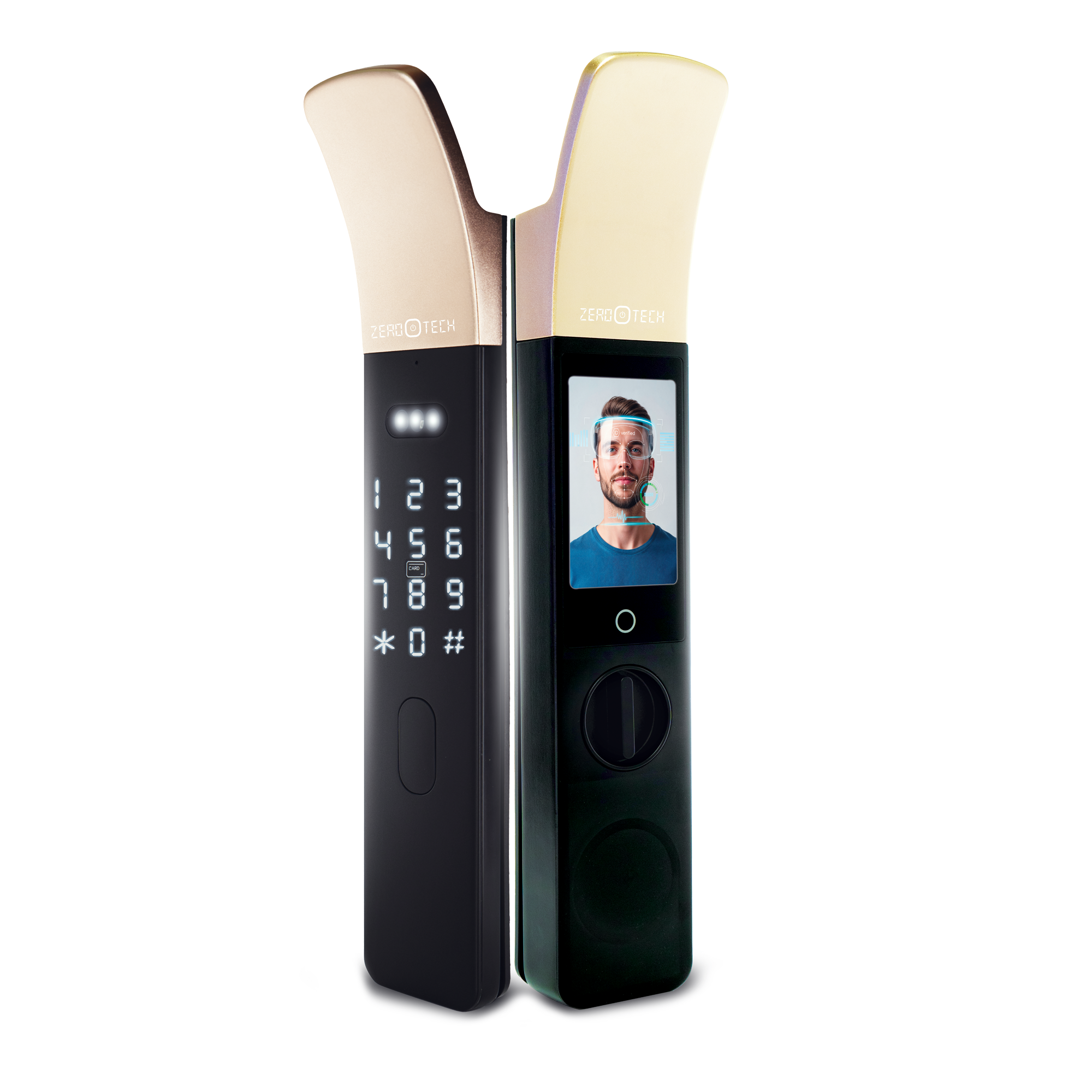
- Biometric Access: Fingerprint or facial recognition for each user.
- Automatic User Detection: Using smartphones or wearables to unlock when an authorized user approaches.
- Deeper Integration: Seamless connection with other smart home devices, such as security cameras or alarms.
- Enhanced Privacy Controls: Users will have more options to control who sees access logs.
For more on smart lock trends, visit the CNET Smart Lock Buying Guide.
Practical Advice For Choosing A Multi-user Smart Lock
If you want to let several people access the same lock, consider:
- How many users will need access? Some locks support only 20 codes, others over 200.
- What types of access do you need? App, code, fob, or physical key?
- Will you need temporary or scheduled access? Not all locks offer this.
- How easy is it to add or remove users? Some systems are simple, others more complex.
- How does the lock handle lost phones or forgotten codes? Backup options are important.
Don’t forget to read online reviews and check for real-world performance, not just specs.
Frequently Asked Questions
Can I Add Or Remove Users From My Smart Lock Remotely?
Yes, most smart locks let you manage users from anywhere using their mobile app. You can add or remove users, set up codes, or change permissions—whether you’re at home or traveling.
How Many Users Can Access One Smart Lock At The Same Time?
The number depends on the brand and model. Some locks support 20–30 users, while others allow up to 250 codes or unlimited app invitations. Check the specifications of your chosen lock.
Is It Safe To Give Smart Lock Access To Guests Or Workers?
Yes, if you follow best practices. Assign unique codes, set start and end times for temporary users, and monitor access logs. Remove access immediately when it’s no longer needed.
What Happens If Someone Shares Their Code Or App Access?
If a user shares their code, others can enter without your knowledge. Always explain the importance of keeping codes private. If you suspect a code is shared, delete it and assign a new one.
Can Smart Locks Work Without Wi-fi Or Internet?
Yes. Most smart locks can be used with keypads or Bluetooth, even if Wi-Fi is down. However, features like remote management or real-time alerts may not work until the connection is restored.
Smart locks make life easier for families, renters, and businesses by allowing multiple users to access the same door securely. By choosing the right lock, setting up proper permissions, and following good security habits, you can enjoy both convenience and peace of mind.