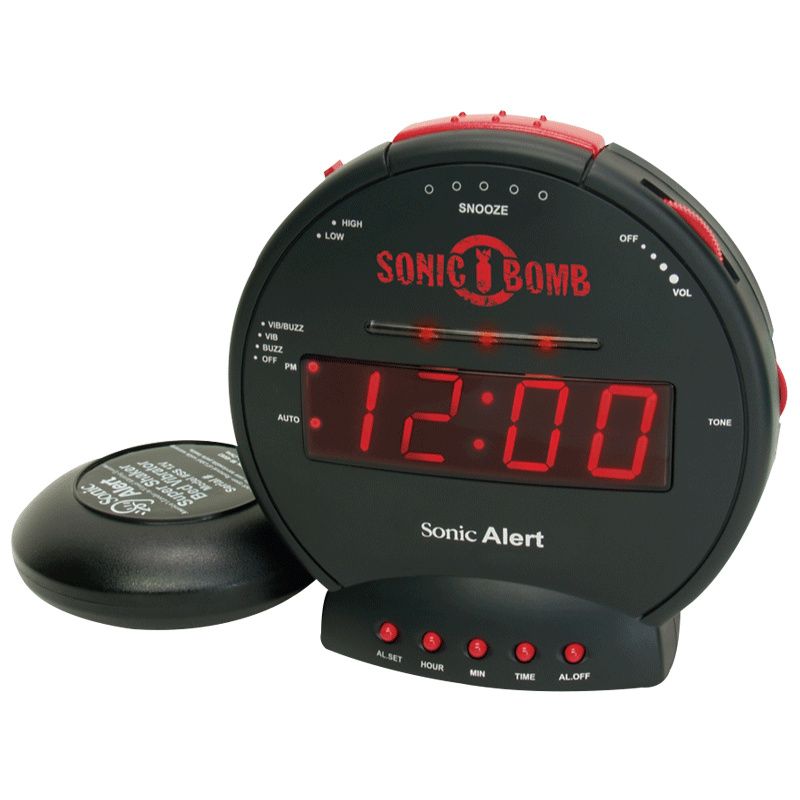
The Sonic Bomb Alarm Clock is famous for its loud sound, strong vibration, and bright flashing lights. Many people who have trouble waking up, especially heavy sleepers or those with hearing loss, rely on this device. But sometimes, users face technical problems, confusing settings, or unexpected failures. This guide will help you troubleshoot your Sonic Bomb Alarm Clock step by step. Whether your alarm won’t ring, the shaker isn’t working, or you’re lost in the settings, you’ll find clear solutions here.
Understanding Your Sonic Bomb Alarm Clock
Before troubleshooting, it’s helpful to know the main features and parts. The Sonic Bomb Alarm Clock is designed with several functions that make it unique:
- Extra-loud alarm (up to 113 decibels)
- Vibrating bed shaker
- Flashing red lights
- Multiple alarm settings (time, volume, tone, snooze)
- Battery backup for power outages
These features make it more complex than a basic alarm clock. Problems can come from electrical parts, settings, or user mistakes.
Exclusive Deals
Limited-time Exclusive Deals. Check current discount on Amazon.
Check Price on Amazon As an Amazon Associate I earn from qualifying purchases.Common Sonic Bomb Alarm Clock Problems
Here are the most frequent issues users report:
- Alarm doesn’t sound
- Bed shaker isn’t vibrating
- Flashing lights not working
- Clock display is blank or dim
- Alarm time won’t set
- Buttons don’t respond
- Alarm is too quiet
- Alarm won’t turn off
- Clock runs fast or slow
- Battery backup fails
Each problem can have several causes. Let’s go through solutions for each.
Alarm Doesn’t Sound
If your Sonic Bomb isn’t making noise, check these possible reasons:
- Volume setting: Make sure the volume is turned up. The slider or knob should be at maximum for loudest sound.
- Alarm switch: Confirm the alarm is turned ON. Look for the alarm icon on the display.
- Alarm time: Double-check the alarm time is set correctly. AM/PM confusion is common.
- Power supply: Ensure the clock is plugged in. If using batteries, check they are fresh and correctly installed.
- Speaker blocked: Make sure the speaker isn’t covered or clogged with dust.
If you’ve tried all these steps and the alarm still doesn’t sound, a hardware problem may be present. In that case, contact customer support.
Exclusive Deals
Limited-time Exclusive Deals. Check current discount on Amazon.
Check Price on Amazon As an Amazon Associate I earn from qualifying purchases.Bed Shaker Isn’t Vibrating
The bed shaker is a key feature, but sometimes it stops working. Troubleshoot as follows:
- Connection: Is the shaker plugged firmly into the back of the clock?
- Mode selection: Some models let you choose between sound, shaker, or both. Check the mode switch.
- Alarm type: Ensure the alarm is set to activate the shaker.
- Cable damage: Inspect the shaker cord for cuts or bends.
- Test with another outlet: Sometimes power issues affect shaker performance.
A surprising insight: Most users forget that the shaker only works when plugged in before the alarm is set. Plugging in after setting the alarm may not activate it.

Flashing Lights Not Working
If the bright lights don’t flash:
Exclusive Deals
Limited-time Exclusive Deals. Check current discount on Amazon.
Check Price on Amazon As an Amazon Associate I earn from qualifying purchases.- Light switch: Confirm the light feature is ON.
- Alarm settings: Some models require you to activate lights in the alarm settings.
- Bulb issue: If the bulb is burnt out, replace it (if possible).
- Power issues: Low power can cause lights to fail.
Many people miss that the lights only flash if the alarm is set to “sound + light” or “shaker + light. ” Double-check your settings.
Clock Display Is Blank Or Dim
A blank or dim display can make the clock useless. Here’s how to fix it:
- Brightness setting: Adjust the brightness using the dedicated button.
- Power check: Make sure the unit is plugged in and batteries are working.
- Reset clock: Unplug for 60 seconds, then plug back in.
- Display damage: If the display is cracked or burned out, repair may be needed.
A practical tip: If your display dims when you turn on the shaker or alarm, it could be a sign of low power or battery failure.
Alarm Time Won’t Set
Setting the alarm time can be tricky. Here are solutions:
- Correct mode: Press and hold the alarm set button until the display blinks.
- AM/PM: Watch for the AM/PM indicator—setting the wrong period is a common mistake.
- Button timing: Press buttons firmly and hold for a second. Quick taps may not register.
- Multiple alarms: Some models have two alarms. Make sure you’re setting the right one.
If you can’t set the alarm after these steps, the button may be stuck or faulty.
Buttons Don’t Respond
Unresponsive buttons can stop you from using many features.
- Clean buttons: Dust or sticky residue can block buttons. Clean them gently.
- Power cycle: Unplug the clock for a minute, then reconnect.
- Check lock mode: Some models have a lock feature to prevent accidental presses.
- Battery check: Low battery can make buttons sluggish.
If none of these work, the keypad may be damaged.

Alarm Is Too Quiet
If your Sonic Bomb isn’t loud enough:
- Volume control: Move the slider to maximum.
- Tone selector: Try different tones—some are louder.
- Speaker cleaning: Remove dust from the speaker grill.
- Check for muffling: Don’t place the clock under soft material.
Fun fact: The Sonic Bomb’s loudness can reach 113 decibels, equal to a rock concert. If yours is much quieter, something is wrong.
Alarm Won’t Turn Off
Sometimes the alarm keeps going even after you try to silence it.
- Snooze button: Press the snooze button firmly.
- Alarm OFF switch: Flip the alarm switch to the OFF position.
- Unplug: If nothing works, unplug the device.
- Reset: Remove batteries for 30 seconds, then reinstall.
A common oversight: Some users confuse the snooze and alarm off buttons. Read the manual to identify which is which.
Clock Runs Fast Or Slow
If your clock loses or gains time:
- Check battery backup: Weak batteries can cause timing errors.
- Power supply: Unstable power can affect timekeeping.
- Reset clock: Set the time again and watch if it drifts.
- Firmware update: If your model supports updates, check the manufacturer’s website.
Rare but possible: Sometimes electromagnetic interference from nearby devices can affect the clock’s accuracy.
Battery Backup Fails
The battery backup is important in power outages. If it fails:
- Correct installation: Insert batteries with the correct polarity.
- Fresh batteries: Use new batteries—old ones may not power the clock.
- Check battery contacts: Clean any corrosion from contacts.
- Battery type: Use the recommended battery size and type.
A non-obvious insight: Some Sonic Bomb models don’t run the alarm on battery power, only the clock display. Always check your model’s manual.
Sonic Bomb Vs Other Alarm Clocks
For context, here’s how the Sonic Bomb compares to standard alarm clocks:
| Feature | Sonic Bomb | Standard Alarm |
|---|---|---|
| Maximum Volume | Up to 113 dB | 60–80 dB |
| Bed Shaker | Included | Rarely available |
| Flashing Lights | Available | Not available |
| Battery Backup | Yes | Sometimes |
| Alarm Customization | High | Low |
Troubleshooting Flowchart
Quick troubleshooting can save time. Here’s a step-by-step guide for common issues:
| Issue | First Step | Second Step | Third Step |
|---|---|---|---|
| Alarm Silent | Check Volume | Verify Alarm On | Test Power Supply |
| Shaker Not Vibrating | Check Plug | Check Mode | Inspect Cord |
| Display Blank | Adjust Brightness | Check Power | Reset Clock |
| Buttons Unresponsive | Clean Buttons | Power Cycle | Check Lock Mode |
Setting Up Sonic Bomb For Best Performance
To avoid issues, set up your Sonic Bomb carefully:
- Choose location: Place the clock where you can see and reach it easily. Avoid putting it under pillows or blankets.
- Plug in bed shaker: Slide the shaker under your mattress or pillow for maximum effect.
- Set alarm time and mode: Decide if you want sound, vibration, lights, or all three.
- Adjust volume and tone: Start with high volume and try different tones to see which wakes you best.
- Test all features: Do a trial run before relying on it for real wake-ups.
A practical tip: Heavy sleepers often need the shaker plus sound. Try different combinations to find what works for you.
Tips For Avoiding Common Mistakes
Many problems are caused by simple errors. Here’s how to avoid them:
- Double-check AM/PM: Set the alarm for the correct period.
- Don’t block speaker: Keep the area around the speaker clear.
- Plug in shaker before setting alarm: This ensures the shaker works when the alarm goes off.
- Replace batteries regularly: Don’t wait until power fails.
- Read the manual: Each model has small differences. Understanding them prevents mistakes.
When To Contact Customer Support
If you’ve tried all troubleshooting steps and your Sonic Bomb still isn’t working, it may need professional help. Signs you need support:
- Display won’t turn on after reset
- Alarm and shaker both fail
- Buttons are physically damaged
- Clock loses large chunks of time
- Unit smells burnt or gets hot
You can find help through the manufacturer’s website or by calling their support line. For more information on alarm clock troubleshooting, visit Wikipedia.
Frequently Asked Questions
Why Is My Sonic Bomb Alarm Not Waking Me Up?
If your alarm isn’t waking you, check the volume, tone, and shaker placement. Some people need both sound and vibration. Try changing the tone to a higher pitch or moving the shaker closer to your head.
How Do I Reset My Sonic Bomb Alarm Clock?
Unplug the clock and remove batteries for 60 seconds. Plug it back in and reinstall batteries. Set the time and alarm again. This clears most minor glitches.
Can The Sonic Bomb Run On Batteries Only?
Most models use batteries for backup, not full operation. The alarm and shaker need main power. The display may show time during outages, but alarm functions are limited.
What Do I Do If The Display Is Flickering?
Flickering can mean low power, weak batteries, or electrical interference. Change batteries, check the power cord, and move the clock away from other electronics.
How Can I Make The Alarm Louder?
Increase the volume slider, choose a higher-pitched tone, and make sure nothing is covering the speaker. For extra loudness, place the clock on a hard surface instead of a soft one.
The Sonic Bomb Alarm Clock is a powerful tool for heavy sleepers and anyone needing a reliable wake-up. With the right setup and troubleshooting, you can solve most problems quickly. Remember, careful settings and regular maintenance prevent most issues. If your device still fails, customer support is ready to help.
With this guide, you can confidently use your Sonic Bomb to start every morning right.