If you’re thinking about making your home smarter and safer, you’ve probably wondered if doorbell cameras can connect with Alexa or Google Home. It’s a smart question—after all, you want your devices to work together smoothly, not create more headaches. Imagine answering your door from your phone, getting alerts when someone’s at the door, or even telling your smart speaker to show you who’s outside. It sounds futuristic, but it’s actually possible today.
Exclusive Deals
Limited-time Exclusive Deals. Check current discount on Amazon.
Check Price on Amazon As an Amazon Associate I earn from qualifying purchases.But not all doorbell cameras are the same. Some work beautifully with Alexa or Google Home, while others don’t. Compatibility depends on the brand, the features you want, and sometimes even the model. In this guide, you’ll learn how these connections work, which cameras play well with Alexa or Google, and what to avoid if you want a hassle-free setup.
You’ll also discover tips to make your smart home more secure and practical. Let’s dive in and see how to make your doorbell camera and your smart home voice assistants work together.
How Doorbell Cameras Work With Alexa And Google Home
To understand compatibility, first let’s look at what happens when you connect a doorbell camera to a smart assistant like Alexa or Google Home. Both these platforms act as “hubs” that let your devices talk to each other. When you set them up, your doorbell camera can send notifications, stream live video, and sometimes even let you talk to visitors through your smart speaker or display.
The main ways doorbell cameras integrate with these assistants are:
Exclusive Deals
Limited-time Exclusive Deals. Check current discount on Amazon.
Check Price on Amazon As an Amazon Associate I earn from qualifying purchases.- Notifications: Get an alert on your Echo or Nest speaker when someone presses your doorbell or when motion is detected.
- Live video streaming: See a live video feed from your camera on smart displays, like Echo Show or Nest Hub.
- Two-way audio: Talk to visitors at your door through your smart speaker or display.
- Voice commands: Ask Alexa or Google to show the front door camera, or to record a clip.
Not every doorbell camera supports all these features. Some only send notifications, while others offer a full set of functions. The details depend on the camera brand, your smart assistant, and sometimes your subscription plan.
Popular Doorbell Cameras That Work With Alexa And Google Home
Many well-known brands offer strong compatibility with one or both voice assistants. Here’s a look at the most popular models and what they can do.
| Brand | Model | Alexa Support | Google Home Support | Notable Features |
|---|---|---|---|---|
| Ring | Video Doorbell 4 | Yes (full) | Limited | Advanced motion detection, Alexa announcements |
| Google Nest | Nest Doorbell (battery) | No | Yes (full) | Facial recognition, Google Home streaming |
| Arlo | Essential Video Doorbell | Yes (video, audio) | Yes (limited) | HD video, wide field of view |
| Eufy | Video Doorbell 2K | Yes | Limited | Local storage, Alexa integration |
| Wyze | Video Doorbell Pro | Yes (video) | No | Budget-friendly, cloud storage |
Important Details To Know
- Ring doorbell cameras work best with Alexa. You can ask Alexa to show the front door, get alerts, and even talk to visitors. Google Home support is very limited—Ring does not stream video on Google devices.
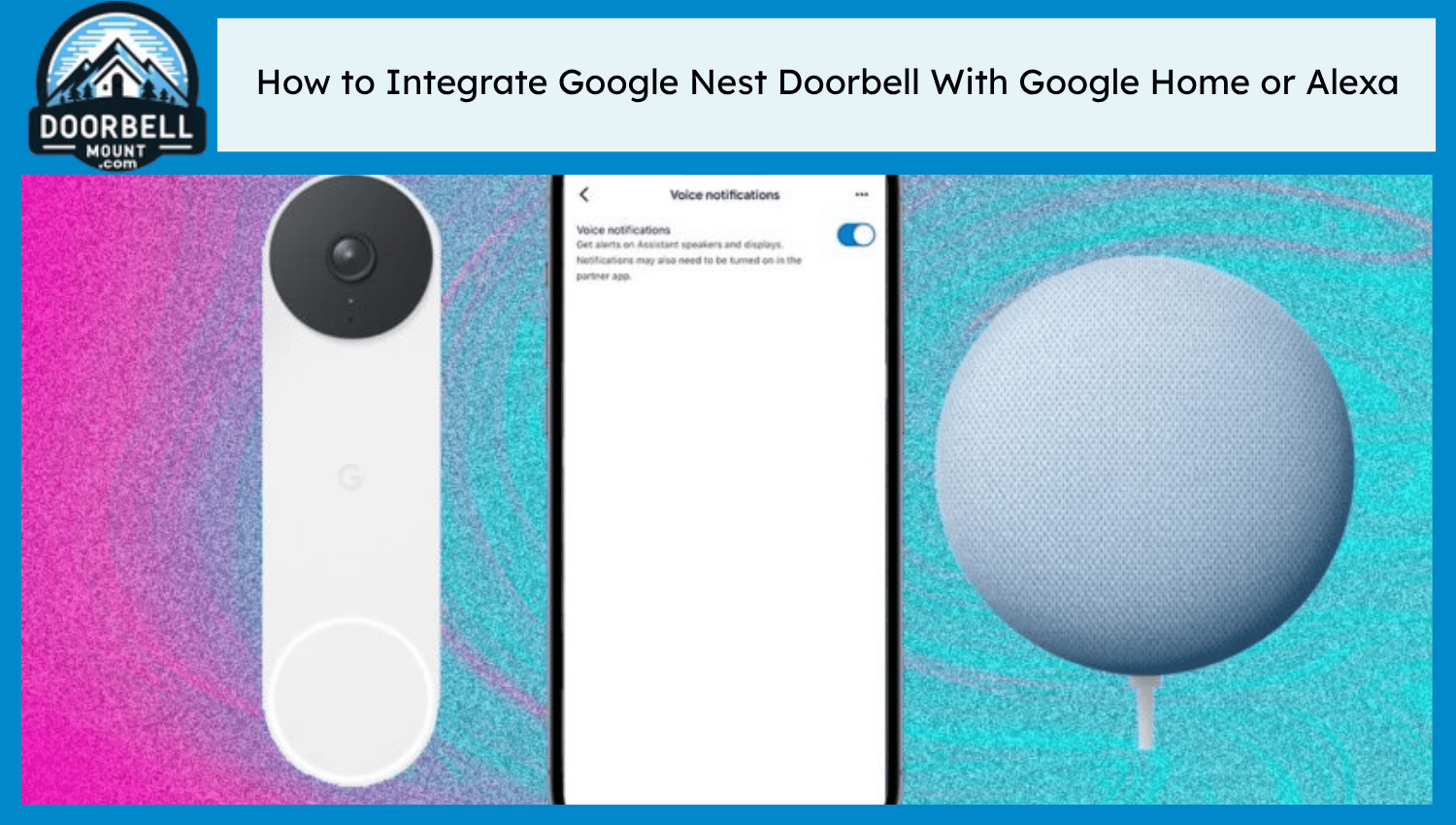
- Google Nest Doorbell is made for Google Home. You can see the camera feed, get announcements, and control everything with your voice. It does not work with Alexa.
- Arlo works with both Alexa and Google Home, but you’ll get more features with Alexa (like live video and audio on Echo Show).
- Eufy offers basic Alexa support and limited Google Home functions. You may need to enable the Eufy Security skill or app.
- Wyze doorbells connect well with Alexa, but not Google Home.
How To Connect A Doorbell Camera To Alexa
If you want your doorbell camera to work with Alexa, the setup process is usually simple. Here’s how it works in most cases:
- Install the camera’s app on your smartphone and set up your doorbell camera.
- Install the Alexa app if you haven’t already.
- Enable the camera’s Alexa skill (for example, “Ring” or “Arlo” skill).
- Link your camera account to Alexa by signing in.
- Discover devices in the Alexa app; your doorbell camera should appear.
- Assign the camera to a group or room if you want.
- Try a voice command: For example, say, “Alexa, show the front door,” if you have an Echo Show.
Example: Connecting Ring Doorbell To Alexa
- Open the Alexa app.
- Tap “More” > “Skills & Games.”
- Search for “Ring” and select the skill.
- Tap “Enable to Use” and sign in with your Ring account.
- Once linked, Alexa will discover your doorbell camera.
- Now you can say, “Alexa, show the front door” on an Echo Show.
Common Issues When Connecting To Alexa
- Skill not enabled: Make sure you’ve added the right skill in the Alexa app.
- Same Wi-Fi network: Both your camera and Alexa device must be on the same network.
- Account linking problems: Double-check your login details.
- Unsupported features: Not all models support two-way talk or video on Echo speakers.
How To Connect A Doorbell Camera To Google Home
Google Home works best with Nest and a few other brands. Here’s how to set it up:
- Set up your doorbell camera using its official app.
- Open the Google Home app on your phone.
- Tap “+” to add a device.
- Choose “Set up device” and then “Works with Google.”
- Search for your camera brand (for example, “Arlo”).
- Sign in and link your account.
- Assign the camera to a specific home or room.
- Try a voice command: “Hey Google, show me the front door” on a Nest Hub.
Example: Connecting A Nest Doorbell To Google Home
- Install and set up the Nest Doorbell with the Google Home app.
- The camera will appear automatically.
- You can now view the live feed on a Nest Hub or Chromecast-enabled TV.
- Get alerts and manage settings in the Google Home app.
Common Issues When Connecting To Google Home
- Camera brand compatibility: Not all cameras support Google Home. Check the brand’s site first.
- Account linking issues: Make sure the same email is used for both accounts.
- Network problems: Devices must share the same Wi-Fi network.
- Missing features: Some brands only let you view the camera, not use two-way talk.
Comparing Alexa Vs Google Home For Doorbell Cameras
When choosing between Alexa and Google Home, it’s important to know the key differences in how they handle doorbell cameras.
Exclusive Deals
Limited-time Exclusive Deals. Check current discount on Amazon.
Check Price on Amazon As an Amazon Associate I earn from qualifying purchases.| Feature | Alexa | Google Home |
|---|---|---|
| Video Streaming | Echo Show, Fire TV | Nest Hub, Chromecast |
| Two-way Audio | Supported (most brands) | Only Nest |
| Notifications | Announcements, Chimes | Broadcasts, Alerts |
| Supported Brands | Ring, Arlo, Eufy, Wyze | Nest, Arlo (limited), Eufy (limited) |
| Voice Commands | “Alexa, show [camera]” | “Hey Google, show [camera]” |
Non-obvious Insights
- Subscription services can affect features. Some features, like video history or advanced notifications, may require a paid plan with your camera brand—even if you use Alexa or Google Home.
- Firmware updates matter. Camera compatibility with Alexa or Google can change with firmware updates. Always keep your devices updated for the best experience.
Choosing The Right Doorbell Camera For Your Smart Home
If you already use Alexa or Google Home, picking a compatible doorbell camera will save you time and frustration. Here’s what to consider:
- Check for official compatibility. Visit the camera’s website or Amazon/Google compatibility page to see if your model is supported.
- Decide which features you need. Do you want just notifications, or live video and two-way talk? Not all doorbell cameras offer the same features with every voice assistant.
- Think about your smart display. If you have an Echo Show, Ring or Arlo are better options. If you have a Nest Hub, Nest Doorbell is a natural fit.
- Consider privacy and data storage. Some cameras store video locally, while others use the cloud. Local storage can mean fewer privacy worries.
- Budget for subscriptions. Advanced features may cost extra, so compare plans.
- Look at installation requirements. Some doorbell cameras need wired power, others run on batteries.
Real-world Example
Suppose you have an Echo Show and want to use voice commands to see who’s at the door. A Ring Video Doorbell will let you say, “Alexa, show me the front door,” and you’ll see a live feed instantly. But if you buy a Google Nest Doorbell, you won’t get the same seamless experience with Alexa.
Alternatively, if you use the Google ecosystem and have a Nest Hub in your kitchen, the Nest Doorbell will show live video and send alerts. If you try to connect a Ring camera, you’ll be disappointed—it won’t stream video on Google devices.
Mistakes To Avoid
- Assuming all cameras work with all assistants. Compatibility isn’t guaranteed.
- Not checking for regional restrictions. Some features may not be available in every country.
- Ignoring power requirements. Wired vs. battery-powered cameras can affect setup.
- Overlooking app updates. An outdated app can break compatibility.

Advanced Integrations And Routines
Both Alexa and Google Home offer ways to automate your smart home using routines or automations. This goes beyond simply seeing a video feed.
Alexa Routines
With Alexa, you can create routines that trigger when your doorbell is pressed or motion is detected. For example:
- Turn on porch lights when someone rings the doorbell at night.
- Play a custom announcement on all Echo devices.
- Start recording video when motion is detected.
Google Home Automations
Google Home also allows basic automation, though it’s more limited for third-party doorbell cameras:
- Broadcast an alert on all Google speakers when the doorbell rings.
- Turn on compatible smart bulbs when someone is at the door (for Nest cameras).
Pro Tip
If you use other smart devices (lights, locks, alarms), check if they can also be controlled by Alexa or Google Home. This makes your routines much more powerful.
Security And Privacy Considerations
Adding a doorbell camera to your smart home can improve security, but it also means more devices connected to the internet. Here’s what to watch for:
- Data encryption: Choose cameras that encrypt video both in transit and in the cloud.
- Two-factor authentication: Enable this on your camera account for extra protection.
- Review permissions: Only give Alexa or Google Home access to devices you want controlled by voice.
- Firmware and app updates: Regularly update your devices to fix security flaws.
- Local vs. cloud storage: Local storage keeps video off the internet, which can reduce privacy risks.
Non-obvious Insight
Some doorbell cameras store a few seconds of video before motion is detected (called pre-roll). This helps you see what led up to an event. Not all brands offer this feature, and it may only work with certain integrations.
Troubleshooting Common Problems
Even with the best brands, you might run into issues. Here are fixes for the most common problems:
- Camera won’t connect: Make sure your Wi-Fi is strong and both devices are on the same network.
- No video on smart display: Check if your camera supports streaming on your device.
- Delayed notifications: This can be caused by slow internet, outdated firmware, or app bugs.
- Voice commands not working: Double-check the device name and update your Alexa or Google Home app.
- Microphone not working: Ensure permissions are enabled for two-way audio.
If all else fails, try removing the device from Alexa or Google Home and adding it again. Sometimes, a simple restart can fix stubborn problems.
Future Trends: What’s Next For Doorbell Cameras And Smart Assistants?
The world of smart home technology moves fast. Here’s what you might see soon:
- Better cross-platform compatibility: More cameras will likely work with both Alexa and Google Home.
- Smarter notifications: Cameras are getting better at recognizing faces, packages, and pets.
- Deeper automation: Imagine your camera triggering multiple actions—like locking doors or calling for help—automatically.
- Improved privacy controls: Users are demanding more ways to control who can access their video feeds.
As voice assistants get smarter, expect doorbell cameras to play an even bigger role in daily life. But remember, newer features often require the latest hardware and software.
For more on how smart home tech is evolving, see this CNET overview.
Frequently Asked Questions
Can I Use My Ring Doorbell With Google Home?
Ring Doorbells do not offer full support for Google Home. You can connect your Ring account to Google Home for basic controls, but you will not get live video streaming or two-way audio on Google devices. For full functionality, Ring works best with Alexa.
What Doorbell Camera Is Best For Alexa Users?
Ring Video Doorbell is the top choice for Alexa users because it’s made by Amazon. It supports live video, announcements, and two-way talk on Echo Show and Fire TV devices. Arlo and Eufy also offer good Alexa integration.
Do I Need A Subscription To Use A Doorbell Camera With Alexa Or Google Home?
You do not need a subscription for basic features like live video and notifications. However, advanced features—like video history, cloud recording, or smart alerts—often require a paid plan from your camera brand.
Can I Get Motion Alerts On My Echo Or Google Speaker?
Yes, if your doorbell camera supports it. Brands like Ring (for Alexa) and Nest (for Google Home) can send motion or doorbell press announcements to your smart speakers. Make sure notifications are enabled in both the camera app and your assistant’s settings.
Will My Doorbell Camera Work If My Wi-fi Is Down?
No, most smart doorbell cameras need an internet connection to send notifications, stream video, or work with Alexa or Google Home. Some models with local storage may record events, but you won’t get real-time alerts or access until the internet is restored.
Smart homes are becoming easier to manage, but compatibility and setup still matter. Take time to pick the right doorbell camera for your voice assistant, keep your devices updated, and enjoy a safer, smarter entryway.